
Class of 2027
VT Power & LightingApprentice Portal Guide
A plain-language walkthrough for Josh, Kadin, and Luis: how to create your account, put the school on your phone, and use every screen that belongs to you.
1. What this portal is
The VT apprenticeship portal is the school’s online home for Year 1 related instruction. It is the place you go to see when class meets, what each Tuesday night covers, your attendance and grades, and to type in your on-the-job (blue book) hours.
This is VT Power & Lighting’s own in-house school. The office runs it. It is not a public sign-up site. Only people already on the roster — right now that is Josh, Kadin, Luis, and the classroom instructor — can create a login, and only with the shop sign-up code.
The address is https://school.vtpowerlighting.com. You can also use it in a regular web browser on a computer.
2. Class basics
- When: Tuesday nights, 5:30 to 9:30 PM.
- Dates: January 5 through December 14, 2027. That is 40 class sessions and 160 classroom hours.
- Where: The shop classroom at 1690 Foote Ave Ext., Jamestown, NY.
- Attendance rule you will see in the portal: You need 36 of the 40 nights in the room, and 160 hours credited. Make-up hours help you reach 160. They do not replace a missed night in the room.
- The calendar also lists nights the class does not meet — for example spring break, summer recess, Election Day, and Thanksgiving week — so you are not guessing.
3. Create your account
Open this page on your phone or a computer:
https://school.vtpowerlighting.com/signup
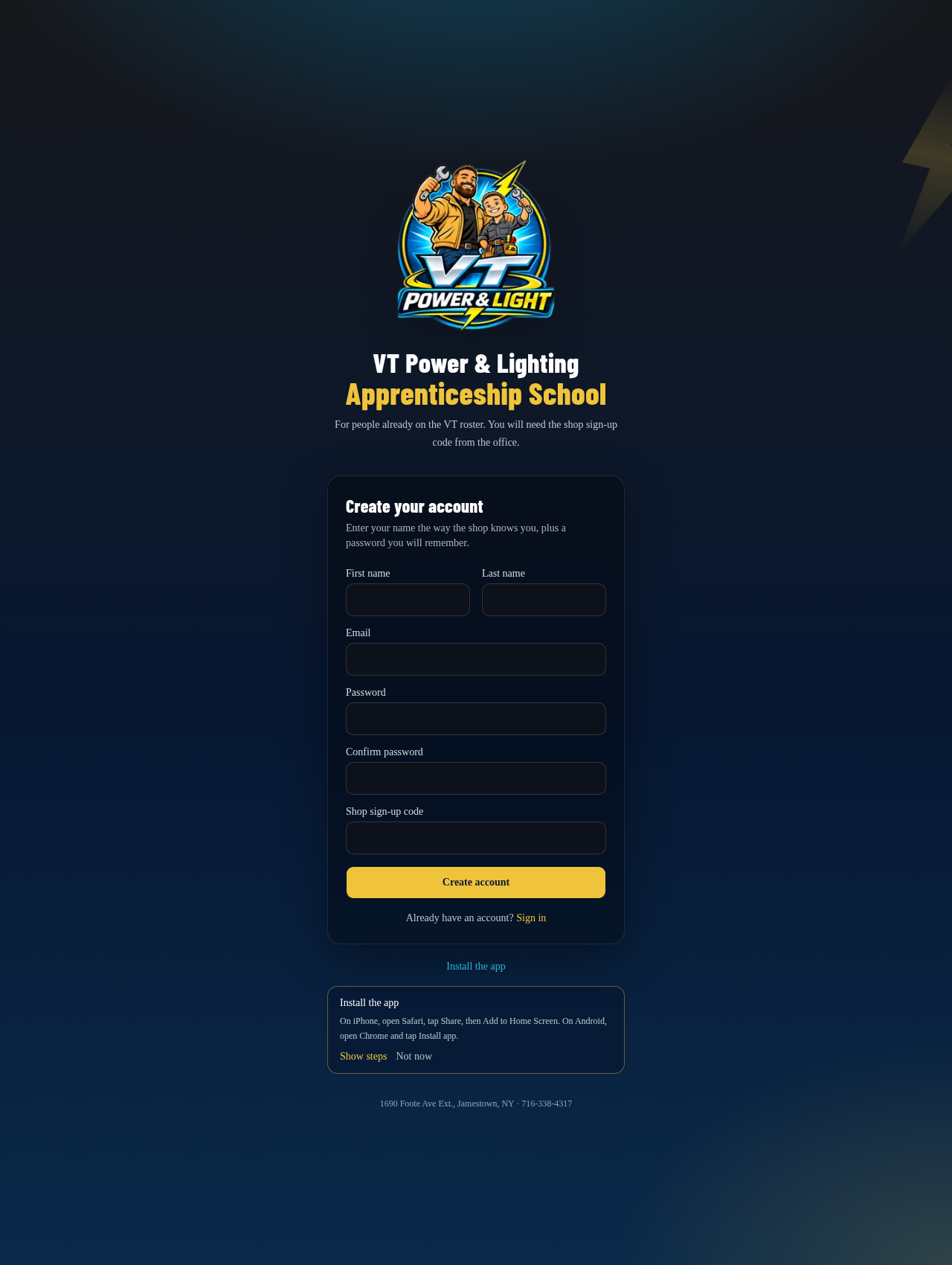
Fill in the form like this:
- First name — type your first name the way the shop knows you: Josh, Kadin, or Luis. That is enough to match your name on the roster. You can add a last name if you want.
- Last name — optional if your roster name is just your first name.
- Email — use an email you can actually open on your phone.
- Password and Confirm password — pick one you will remember. It must be at least 8 characters, and both boxes have to match.
- Shop sign-up code — type this exactly:
VT-DAELAJ
Then tap Create account.
When that works, the sign-up page will tell you the account is set up and to go sign in. Your login is then tied to your spot on the roster automatically. You do not need the office to create the account for you.
4. Sign in
Go to https://school.vtpowerlighting.com/login (or tap Sign in from the sign-up page). Enter the same email and password you just created, then tap Sign in.
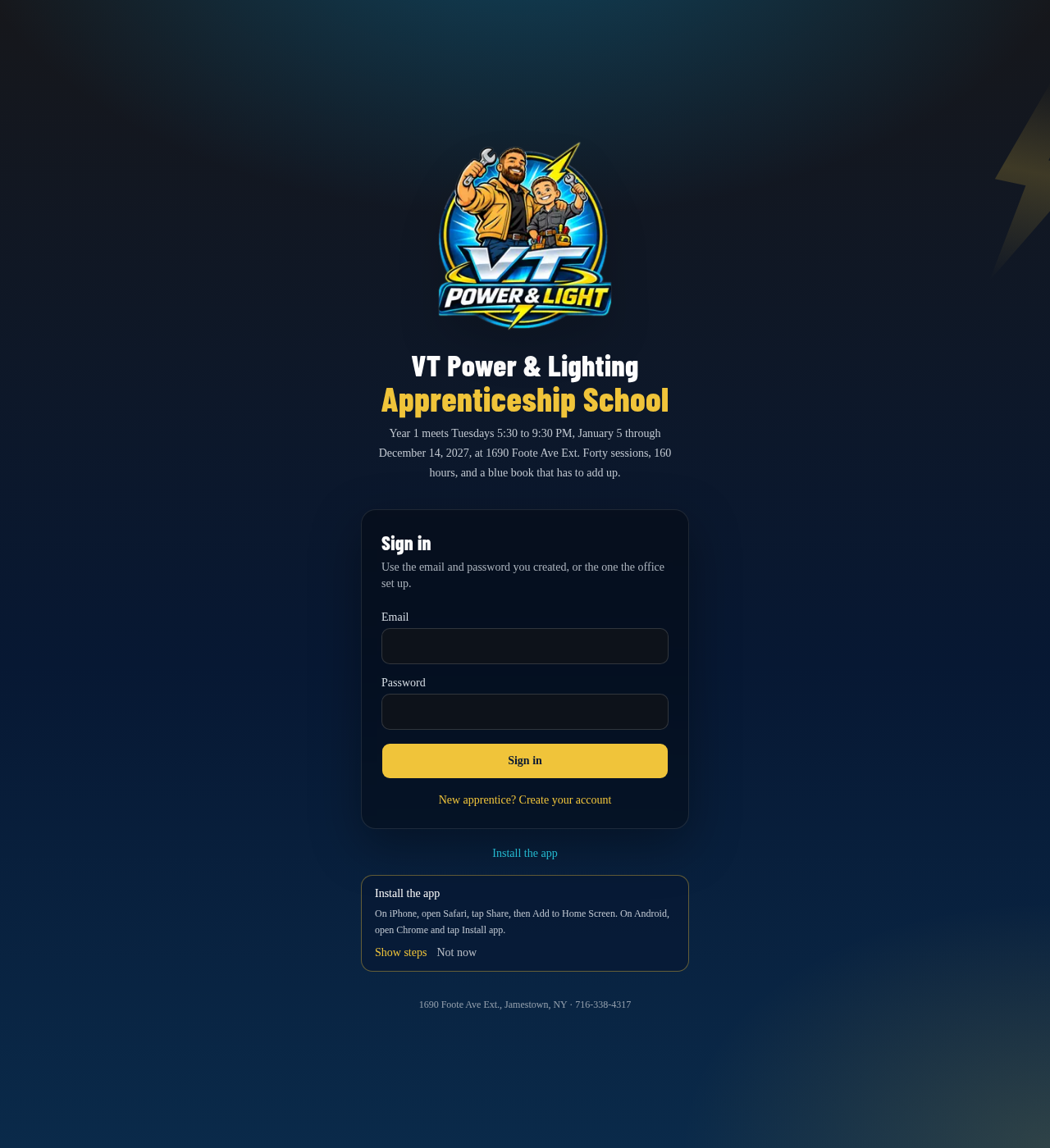
If you try to sign in before clicking the email link, the page will tell you the email is not confirmed yet. Confirm first, then sign in again.
There is no “forgot password” button on the site. If you cannot get in, contact Austen at the office and they can help you reset access.
5. Put it on your iPhone or Android
You can use the portal in a browser, or add it to your home screen so it opens like an app, with the VT logo as the icon. You do not need the App Store or Google Play, and there is no extra fee.
The short version is also on https://school.vtpowerlighting.com/install, and a small “Install the app” reminder appears on the sign-in and sign-up pages.
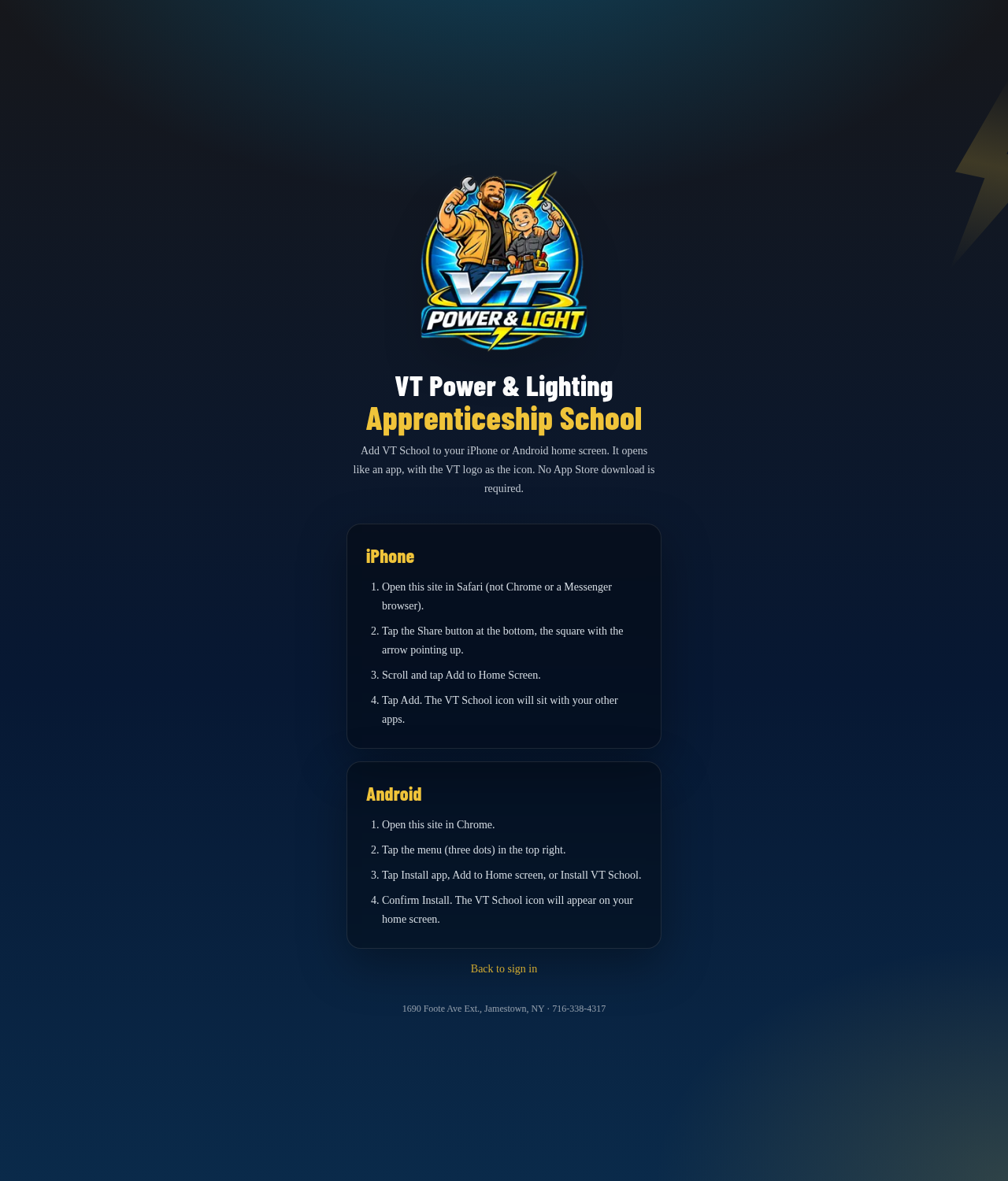
iPhone
- Open the school site in Safari (not Chrome, and not the browser inside a text or Messenger app).
- Tap the Share button at the bottom — the square with the arrow pointing up.
- Scroll and tap Add to Home Screen.
- Tap Add. “VT School” will sit with your other apps.
Android
- Open the school site in Chrome.
- Tap the menu (three dots) in the top right.
- Tap Install app, Add to Home screen, or Install VT School.
- Confirm Install. The VT School icon will appear on your home screen.
After that, you still sign in with your email and password the first time. The app remembers you on that phone the way a website would.
6. Finding your way around
Once you are signed in you will see the school header with the VT logo, your name, and a Sign out button. On a phone, open Menu at the top to get the list of pages. On a wider screen, the same list sits on the left.
As an apprentice, your menu is:
| Menu item | What it is for |
|---|---|
| Dashboard | Your home screen: next class, your totals, and the latest announcements. |
| Calendar | Every Tuesday night, plus days the class is off. |
| Attendance | Your nights and hours, after the instructor records them. |
| Grades | Your quiz, midterm, final, and lab scores, and whether you are passing. |
| OJT hours | Where you type blue-book hours by category and send them in for approval. |
| Documents | The handbook and other files the office uploads for the class. |
| Announcements | Notes from the office or the instructor. |
| Reports | Printable and downloadable views of your own totals. |
Tap your name in the top right (on a wider screen) to open your account page and change your password. A link at the bottom of the page, Install the app, goes back to the phone instructions.
You will not see menu items that belong only to the office or the instructor, such as Approvals, Roster, Program rules, or Instructor hours.
7. Dashboard
This is the first page after you sign in. It greets you by your first name and tells you when the next class is — including if it is tonight, 5:30 to 9:30 PM — and the session number and topic.
Three cards show your current standing:
- Attendance — related-instruction hours toward 160, and sessions in the room toward 40 (you need 36 in person). A short status line tells you if you are in progress, below 36 live sessions, or finished.
- Grades — your overall weighted percent, or “No scores yet” until the instructor enters them. Passing needs 70% overall and 70% on the final. A link takes you to the breakdown.
- OJT hours — three bars: the 2027 year toward 1,600 hours, the program toward 4,800, and Jamestown Class 2 toward 6,500. The button Enter blue-book hours opens the OJT page.
Below that is a card for the next session (date, time, hours, and topic) and a button, Open the session, which jumps to that night’s details. You will not see a “Take attendance” button — that is for the instructor and the office.
At the bottom are the latest announcements (up to three), with a link to see all of them.
8. Calendar
Open Calendar to see the year laid out as “Tuesday nights.” Each class lists the session number, the date, 5:30–9:30 PM, and the topic. Upcoming, past, and “Tonight” nights are labeled. Days with no class appear as a dashed line with the reason (for example summer break or Thanksgiving week). If the office added a reserve or makeup date, it will show in this list too.
Tap a session to open its page. You will see:
- The topic, date, and hours
- Objectives — what that night is meant to cover
- NEC articles — the Code references for the lesson
- Reading — what to study ahead of time
- Lab — the hands-on work for that night
- Session notes — anything the instructor has posted after class. If they have not written any yet, the page will say so. You can read these notes; you cannot edit them.
Bring a tabbed 2023 NEC to class, as the school has asked. The reading line on each session is your best guide for what to open before Tuesday.
9. Attendance
You cannot mark yourself present. The instructor or the office records attendance on class night. Your Attendance page is your record of that.
At the top you will see three totals:
- Nights in person — out of 40
- Hours credited — out of 160 (this includes make-up hours)
- Absences recorded
Under that is every session. A night may show as Upcoming, Not recorded, a number of hours (for example 4 h), or hours plus make-up. Hours are kept in quarter-hour steps (0, 0.25, 0.5, and so on, up to 4 hours for a regular night).
If a number looks wrong, talk to the instructor or Austen. Do not try to change it yourself — there is no edit button on your side.
10. Grades
The Grades page shows only your scores, not anyone else’s. The office and the instructor enter the numbers; you come here to see them.
Year 1 is scored like this:
| Part | Weight |
|---|---|
| Quizzes (they average together) | 35% |
| Midterm (written + practical) | 20% |
| Final (written + practical) | 25% |
| Labs and participation | 20% |
You pass the year with at least 70% overall and at least 70% on the final. A strong quiz average cannot save a final under 70. The page itself walks through an example of that.
A few scoring details you will also see on this page:
- Each quiz counts equally in the quiz average. Each lab counts equally in the lab average.
- A quiz retake replaces the original score and is capped at 70.
- Lab check-offs are 100 when passed and 0 if they are not completed.
The planned grade items include quizzes (safety, math and Ohm’s law, theory, NEC and blueprints, GFCI/AFCI, lighting, load calculations, services and grounding, generators), lab check-offs (device wiring, 3-way/4-way, GFCI/AFCI, panel make-up, generator/ATS, takeoff, conduit bending), participation, the midterm, and the final. Until a score is entered, that box simply has no number yet.
11. OJT hours (your blue book)
This is the page you will use most often between class nights. Open OJT hours (or Enter blue-book hours on the dashboard).
At the top you will see your progress bars:
- 2027 toward 1,600 — approved hours in the class year
- Program toward 4,800 — approved hours from any year, toward the residential program total
- Jamestown Class 2 toward 6,500 — the City of Jamestown license total
Draft months do not count in those totals. Only hours the office has approved (and, for the program total, supervisor-verified hours) move the bars. A November 2026 book, for example, can move the program total and leave the 2027 bar at zero, just as the page explains.
You will also see a table of categories A through Q, with hours you have logged, hours that are verified, and the NYSDOL outline number for that category. This class tracks the three totals above. It does not pass or fail you on each outline number by itself.
To enter a month, tap Enter for the current month (for example “Enter November 2026”). You can also reopen any month already on file from the list at the bottom. Each month is marked draft, submitted, or verified.
How to fill a month
- Open that month’s page.
- For each category where you actually did the work, type the hours. Use half-hour steps if you need to (0.5, 1, 1.5, …). Leave a category at 0 if you did not do that work this month.
- Do not count the same hour twice. Put the time in the category where the work was done.
- Fill in Supervisor on the blue book — the name on the signed book.
- Add a short Note if something needs explaining.
- Tap Save draft if you are not finished, or Submit for approval when the month is done.
After the office verifies a month against the signed Form C, the page locks and tells you it is verified. You cannot change the numbers yourself at that point. If a number is wrong, ask the office to send the month back.
The categories, in the same words the portal uses
| Code | Category | Outline hrs |
|---|---|---|
| A | Project Layout and Planning — blueprints and specs; coordination; laying out services and branch circuits | 200 |
| B | Underground Installations — trenching where it is local practice, direct burial, PVC or rigid, grounding electrodes | 200 |
| C | Thinwall Conduit Raceway Systems | 200 |
| D | Rigid Conduit Raceway Systems | 200 |
| E | Installing Services and Panels — including service-entrance work on a generator job | 500 |
| F | Installing, Splicing and Terminating Wires and Cables — NM, temporary power, feeders, branch circuits, control wiring | 1,200 |
| G | Lighting System Installation | 400 |
| H | Testing and Troubleshooting Feeders, Motors and Branch Circuits | 100 |
| I | Fire Alarm Installation (optional) — only if VT holds the NYS alarm license; otherwise log no hours here | 100 |
| J | Control System Installation | 150 |
| K | Security System Installation (optional) — same license note as I | 100 |
| L | Installing Sound and Communication Systems | 150 |
| M | Installing and Terminating Transformers | 100 |
| N | Installing Specialized Systems — including generator setting, ATS, and load-center wiring | 800 |
| O | Service and Troubleshooting | 100 |
| P | Material Handling and Pre-Fabrication — shop clean-up is not OJT unless it is this work | 100 |
| Q | Safety Awareness, Required Paperwork and Other Specialized Areas | 200 |
12. Documents, announcements, and reports
Documents
Open Documents for the handbook, forms, the program proposal, and anything else the office has uploaded. Everyone in the school can read these. You cannot upload or delete files. Tap a title to open or download it.
Announcements
Open Announcements for notes from the office or the instructor — class start reminders, due dates, and the like. Pinned items stay at the top. You can read them here; you cannot post or remove them.
Reports
Open Reports when you want a clean view of your own numbers, or to print or download them. Tabs along the top switch the view:
- Summary — sessions, hours, overall grade, final, and OJT totals
- Attendance — your night-by-night record
- Grades — the grade breakdown
- OJT — approved hour totals
- Sessions — the class list / syllabus view
Use Print for a paper copy, or Export CSV if you want a spreadsheet file. As an apprentice, these reports show only you, not the whole class.
13. Your name, email, and password
Tap your name in the header to open your account page. It shows your role (apprentice), your name, and the email you signed up with.
To change your password, enter your current password, a new password of at least 8 characters, and the same new password again. Then tap Update password.
If you are locked out or do not remember the current password, there is no reset link on the site. Contact Austen and the office will help you.
When you are done for the day, tap Sign out in the header, especially on a shared computer.
14. What you see vs. what the office sees
| You (apprentice) | Instructor / office | |
|---|---|---|
| Calendar and session details | Yes — including reading, labs, and notes they post | Yes, and they can add session notes. The office can edit a session. They can take attendance from here. |
| Attendance | Your record only, after it is entered | They enter hours and make-up for each person on class night. |
| Grades | Your scores and whether you are passing | They enter scores. The office can also add a new quiz or lab item. |
| OJT hours | Enter, save a draft, and submit your months | The office reviews submissions on Approvals, verifies them, or sends a month back. The instructor does not have an OJT menu. |
| Documents | Read and download | The office uploads and removes files. |
| Announcements | Read | The office posts and removes them. |
| Reports | Your own totals, print, or export | The office sees the whole class. Instructor hours and invoices are on a separate page you will not see. |
| Roster and program rules | Not in your menu | Office only, including the shop sign-up code. |
15. If something goes wrong, and who to call
| What you see | What to try |
|---|---|
| The code and name did not match an open roster spot | Check the shop code VT-DAELAJ and that your first name is Josh, Kadin, or Luis. Wait 15 minutes if you have tried many times. |
| No confirmation email | Wait a few minutes, check spam, and make sure you typed the email correctly. Ask the office if it still has not arrived. |
| “Email is not confirmed yet” | Open the confirmation link first, then sign in. |
| That email already has a login | Go to the sign-in page instead, or ask the office if you are not sure which email you used. |
| Email and password did not match | Retry carefully. If you are stuck, contact Austen — there is no forgot-password link on the site. |
| A page that says you have no school access | Your login is not tied to a roster profile. Stop and call the office. Do not keep creating new accounts. |
| A grade, attendance night, or OJT month looks wrong | Tell the instructor or Austen. Verified OJT months have to be sent back by the office before you can edit them. |
| The site will not add to the iPhone home screen | Use Safari, not Chrome or an in-app browser, then Share → Add to Home Screen. |
Austen, office
Email: csr@vtpowerlighting.com
Phone: (716) 338-4317
Shop: 1690 Foote Ave Ext., Jamestown, NY
Portal: https://school.vtpowerlighting.com
Keep this guide handy, or open it any time at https://school.vtpowerlighting.com/guide. You can also print it from that page.